Installation on Android TV & Box
Android TV, Google TV, Android boxes, phones and tablets.
Before you start
- Your Prima 4K account details (username, password and server URL), sent by email or WhatsApp after ordering.
- A stable internet connection: 10 Mbps for HD, 25 Mbps for 4K. Wired or 5 GHz Wi-Fi is best.
- A Google account signed in, with access to Google Play.
Step by step
Step 1
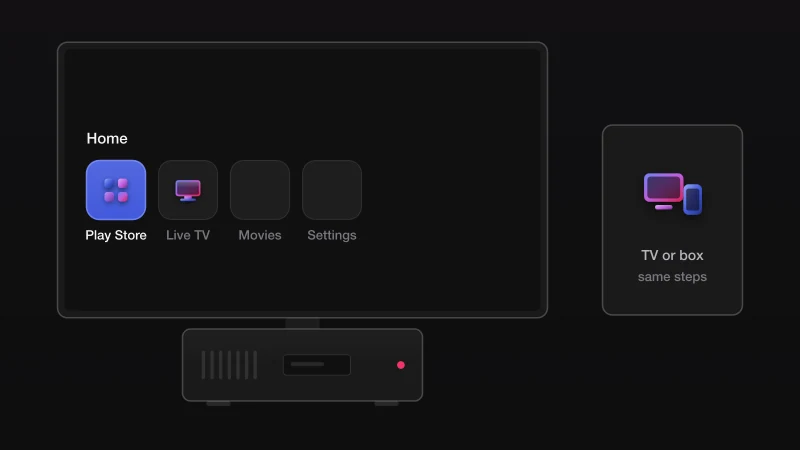
Open Google Play
On a box or TV, open Google Play from the home screen. On a phone or tablet, open the Play Store.
Step 2
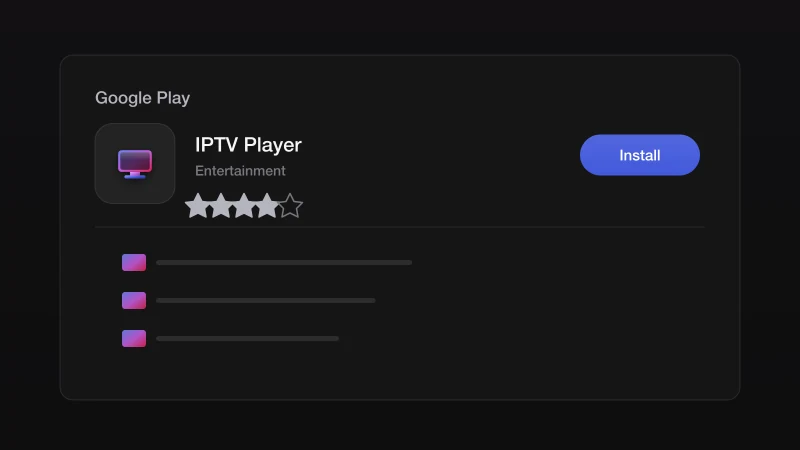
Install an IPTV player
Search for an IPTV player with Xtream Codes support and install it. We recommend one by name on WhatsApp for your device.
Step 3
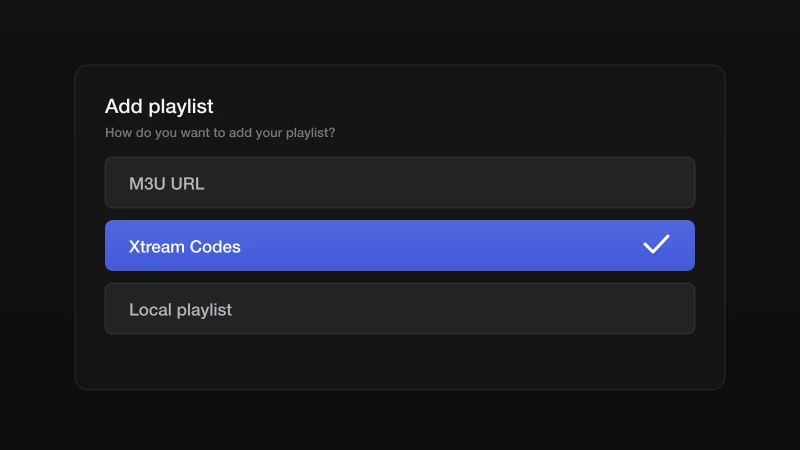
Choose Xtream Codes login
Open the player and choose the Xtream Codes or Xtream API option when asked how to add a playlist.
Step 4
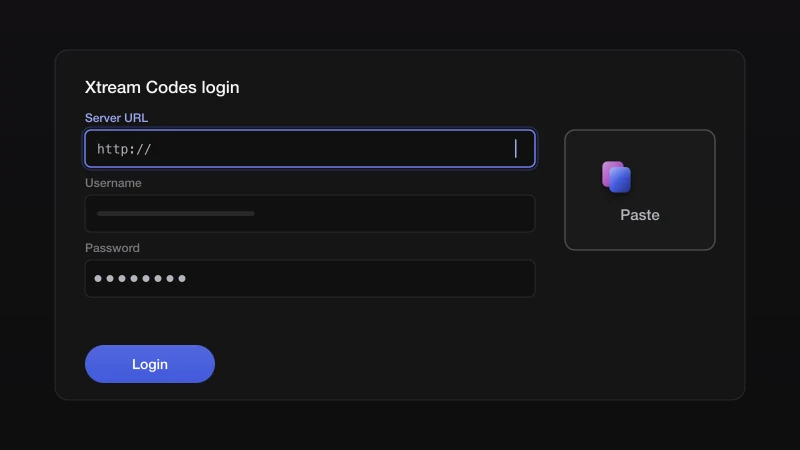
Enter your account details
Type the server URL, username and password from your Prima 4K message exactly as written.
Step 5
Load the channels
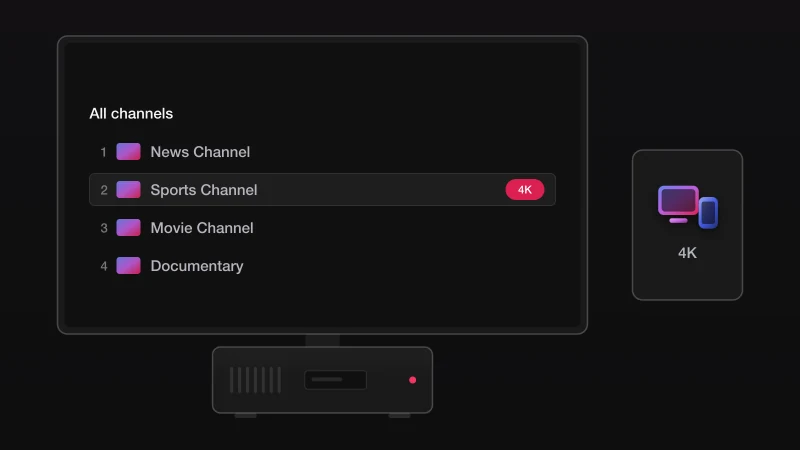
Confirm and wait for the list. Open Live TV and pick a channel. Phones stream in Full HD; boxes and TVs get 4K where the screen supports it.
If something goes wrong
Update the app in Google Play, then clear its cache in Settings, Apps. On boxes with little storage, uninstall apps you do not use.
Type the username and password exactly as sent, with no spaces before or after. Both are case-sensitive. If you copied them from an email, delete any trailing space.
Run a speed test on the device. Below 10 Mbps, move closer to the router or use Ethernet. If the speed is fine, restart the app and the router, then try another server from the list we sent.
The account may have expired or be in use on another device at the same time. Message us with your username and we check it in a minute.
Stuck? We install it with you
Send us a message with your device and where you got to. We walk you through the rest on WhatsApp, seven days a week.
Other devices
Smart TV
Samsung, LG, Android TV and Google TV. An app from the TV's store and your account details.
5 stepsOpen the guideFire TV Stick
Any Fire TV Stick or Fire TV. The Downloader app, then the player.
6 stepsOpen the guideiPhone & iPad
iPhone, iPad and Apple TV, from the App Store.
5 stepsOpen the guideMAG box
MAG 250 to MAG 524 and other Infomir boxes, via the portal URL.
4 stepsOpen the guideVLC & desktop
Windows, macOS and Linux, with the free VLC media player.
4 stepsOpen the guide